Skip to content
- Activate your account: click on the link in the User activation email to set up a password
- On the Left column, under Modules, click on CSV Import, then Import
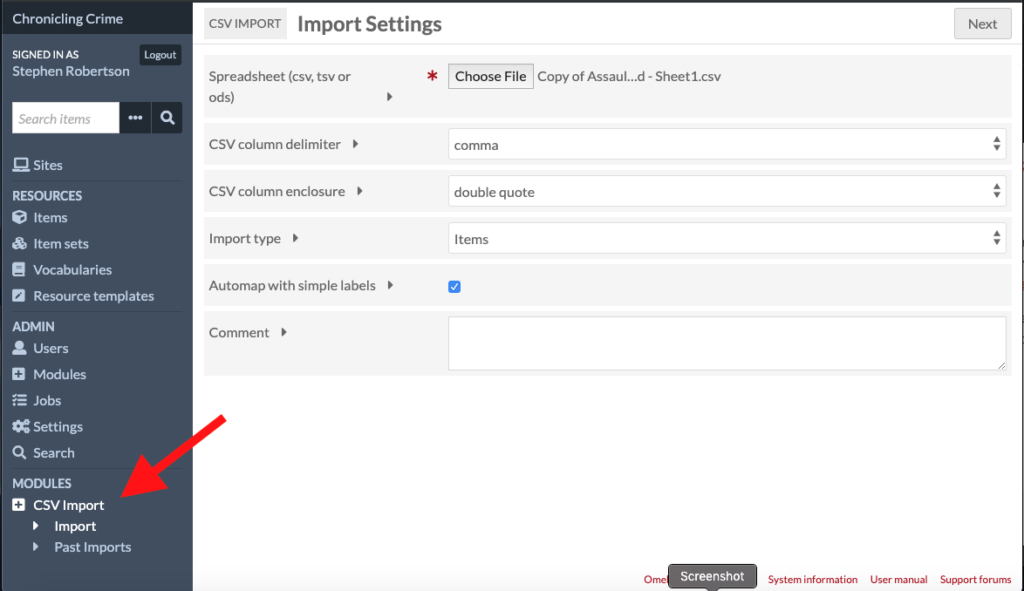
- Click Browse and select the csv file you downloaded from Google Sheets, then click Next
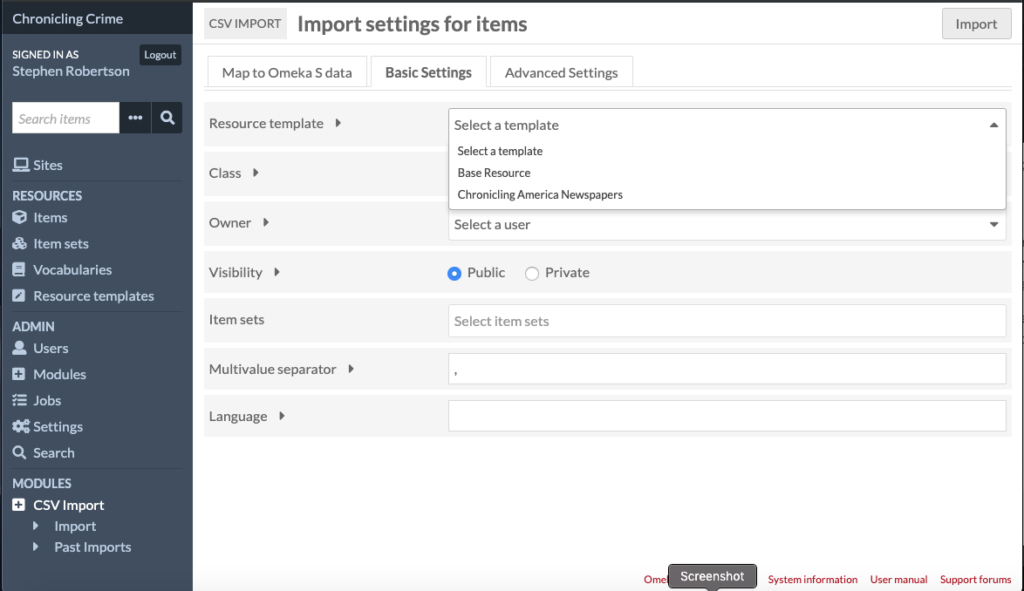
- Click the Basic Settings tab, click on Resource Template, and select New Chronicling America Newspaper
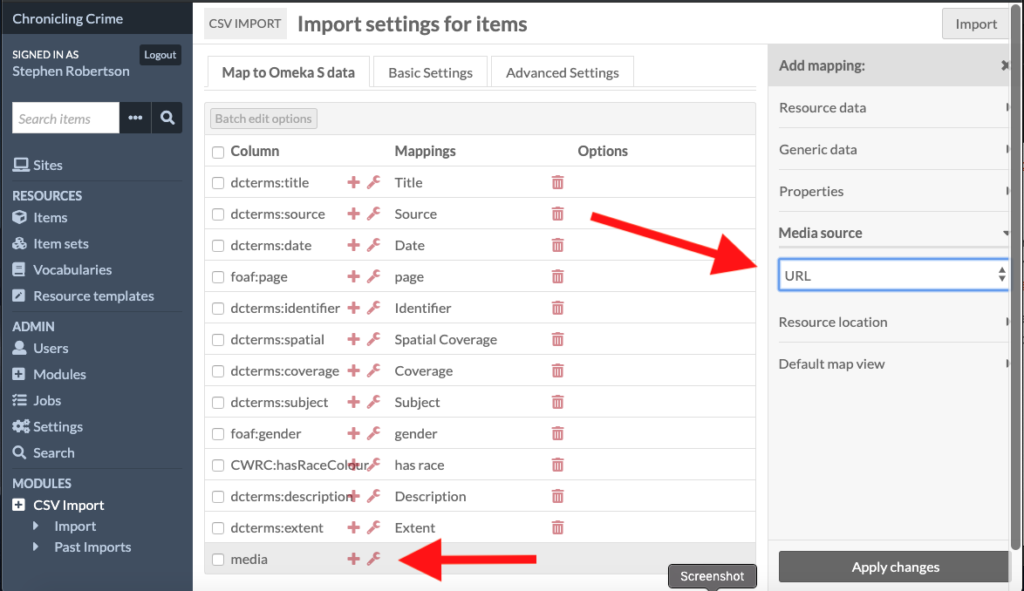
- Click the Map to Omeka S data Tab, scroll to the bottom – in the row labelled media, click the + – then in the column that appears on the right, click on Media Source, then select URL, then clicl Apply Changes – you should see Media Source [URL] appear next to media in the middle column
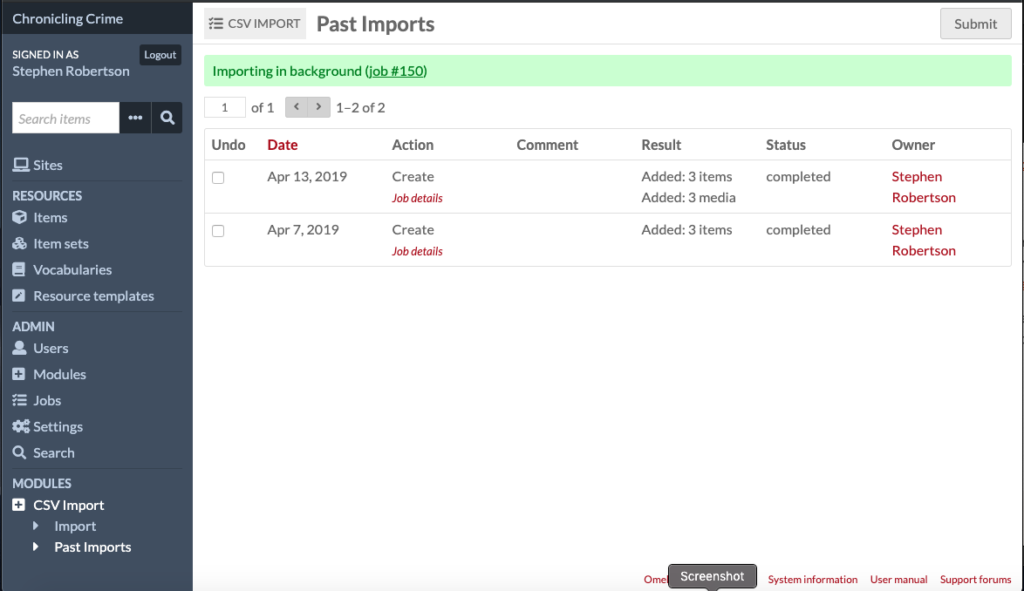
- Click the Import button on the top right – & give it time, since uploading the pdfs can take a while
- When the upload is complete, Click Items – the files for the whole class appear in this list, so look for your name in the Owner Column
- Check that all your items uploaded (often some do not)
- If there are missing items, make a copy of your dataset csv file, delete the rows/items that were uploaded, save the csv, and upload the edited csv by repeating steps #2-#6
- When you have completed this import, let me know so I can change your user permissions so you don’t accidentally delete your work or that of someone else in the class
