Use these instructions if you want to add material such as charts or graphs of your data to use in your exhibit
- Click on ITEMS, and then the ADD A NEW ITEM in the top right of the window
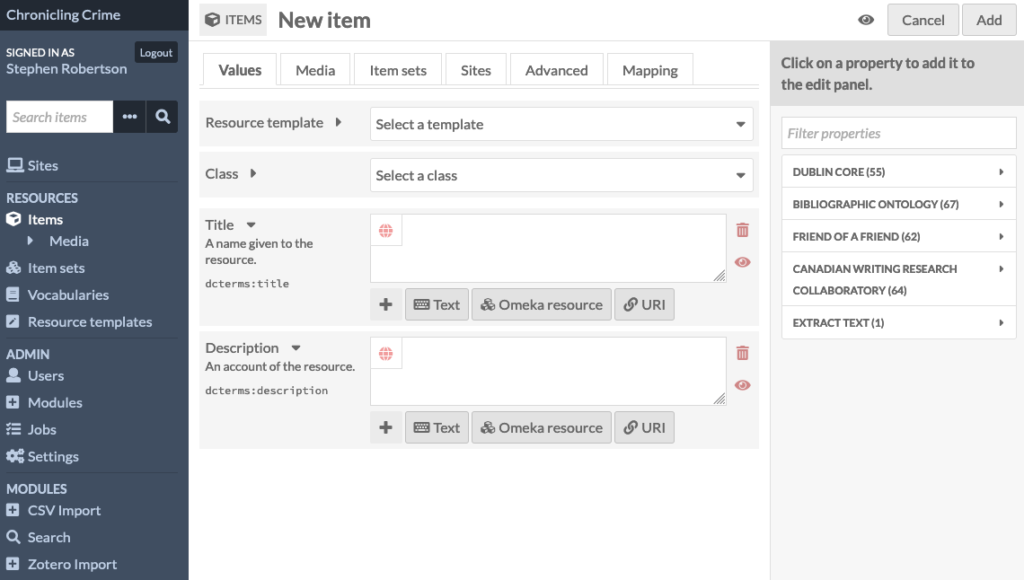
- If you are adding a newspaper story or page, click on RESOURCE TEMPLATE and select NEW CHRONICLING AMERICA NEWSPAPER – this will open a template containing fields for all the columns in the dataset
- If you are not adding a story, filling in the Title, Source and Date fields is enough information
- If you are uploading a graph, just complete the Title
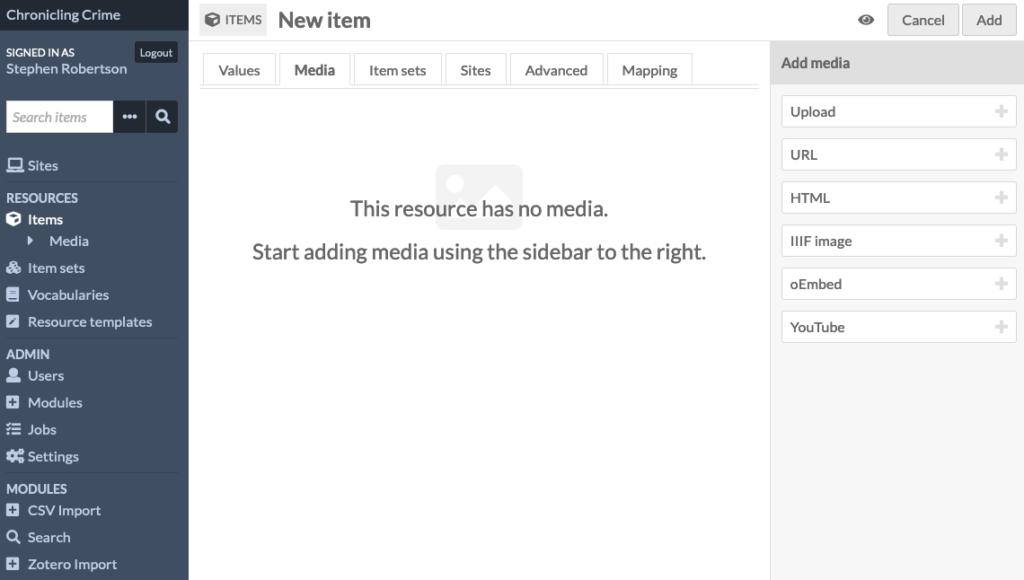
- Click on the Media tab to upload the item you are adding
-
- If you have downloaded the image on to your desk top, click the UPLOAD button on the right, and find the file
- If you are adding a newspaper page, you can click the URL button and paste in the URL of the pdf image of the page
- Click on the Sites tab, and find your name in the list on the right, then click on the title of your site – it should then appear in the main window
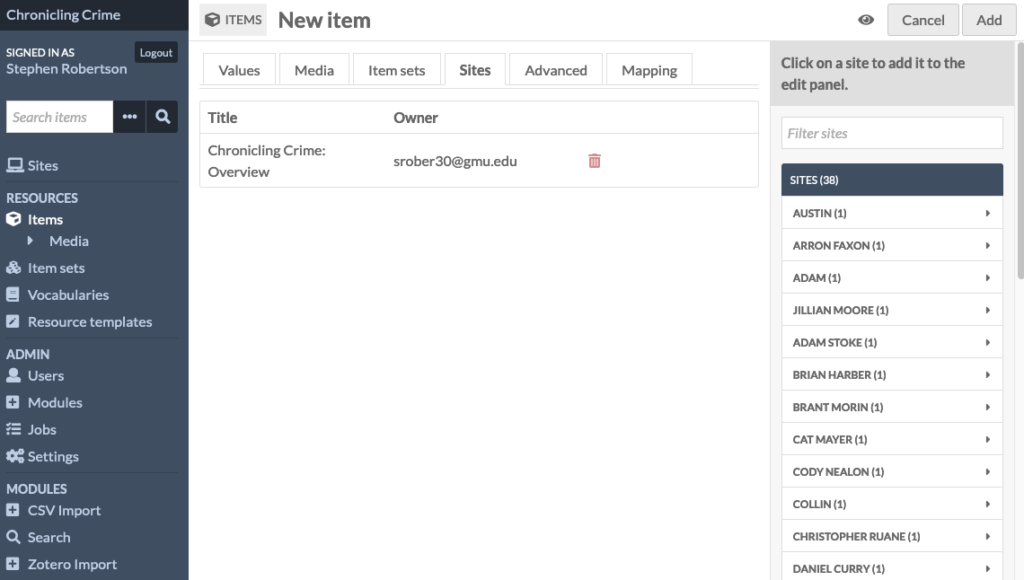
- If any other sites appear in the list, click the Trash Can to delete them from the list so your item is not added to those sites
- Click the ADD button in the top right
