Your assignment will be presented as a set of pages in a site in Omeka.
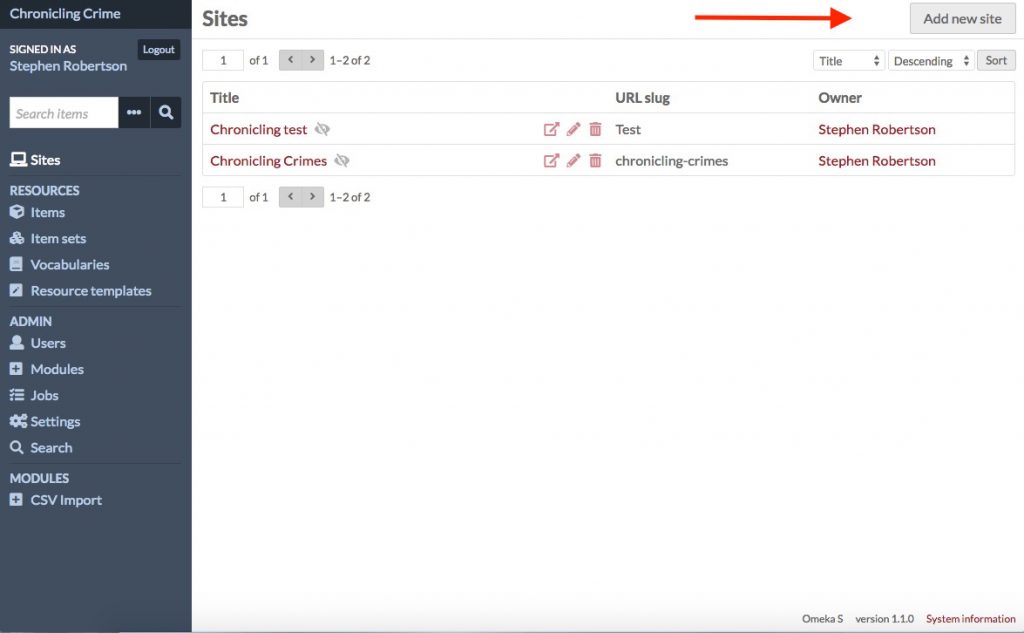
Create your site by clicking on Sites in the right hand menu, and then Add new site on the top right of the screen
- Give you site a title using this format: ‘Assault in the Topeka Times, 1900 & 1920’
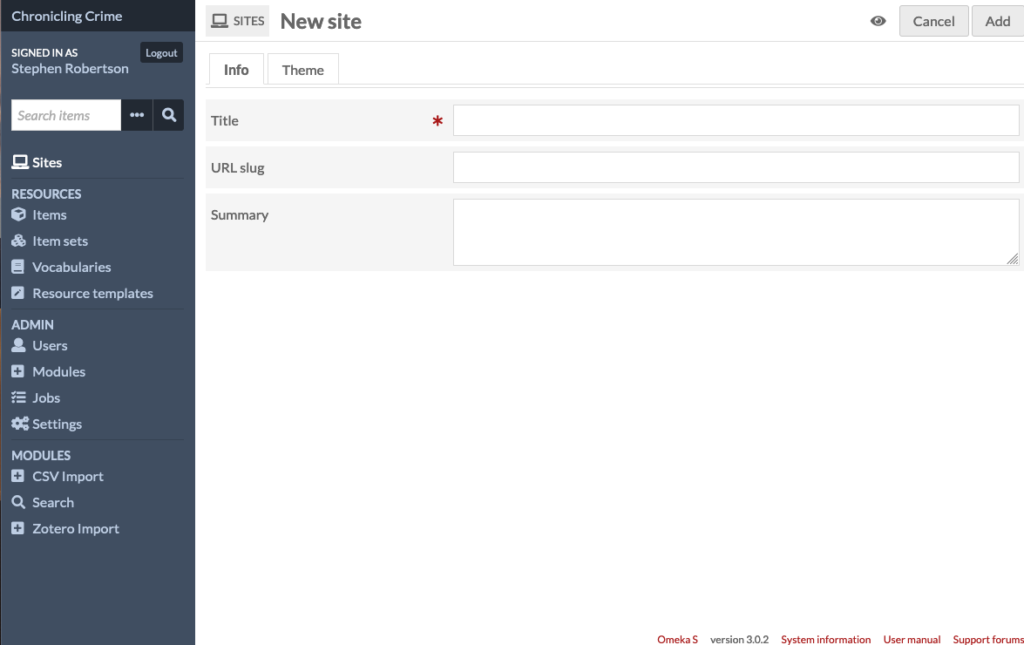
- Click on the Theme tab and choose a theme – I recommend Cozy, which is what I have used in the example
- Then click Add in the top right
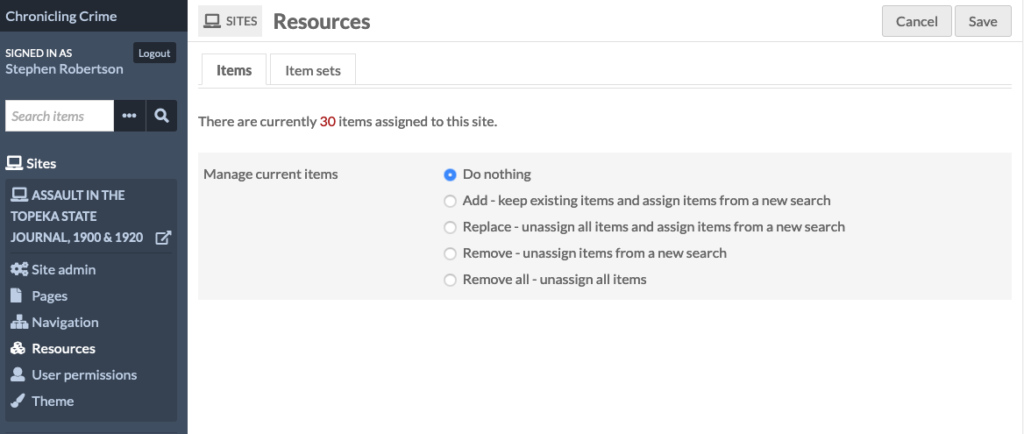
When you have created your site, you need to connect your items (your dataset) to the site so they are available to add to the site. Once you have created your site, you will see a menu on the list of options related to the site
- Click on Resources – you will see the number of items assigned to the site in red below the tabs
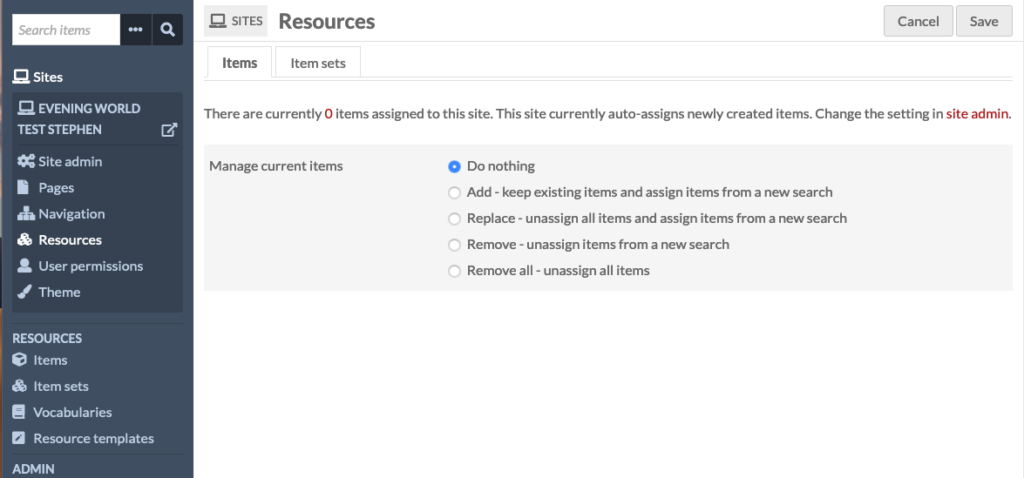
- In the Manage Current items options, Click on the button next to Add
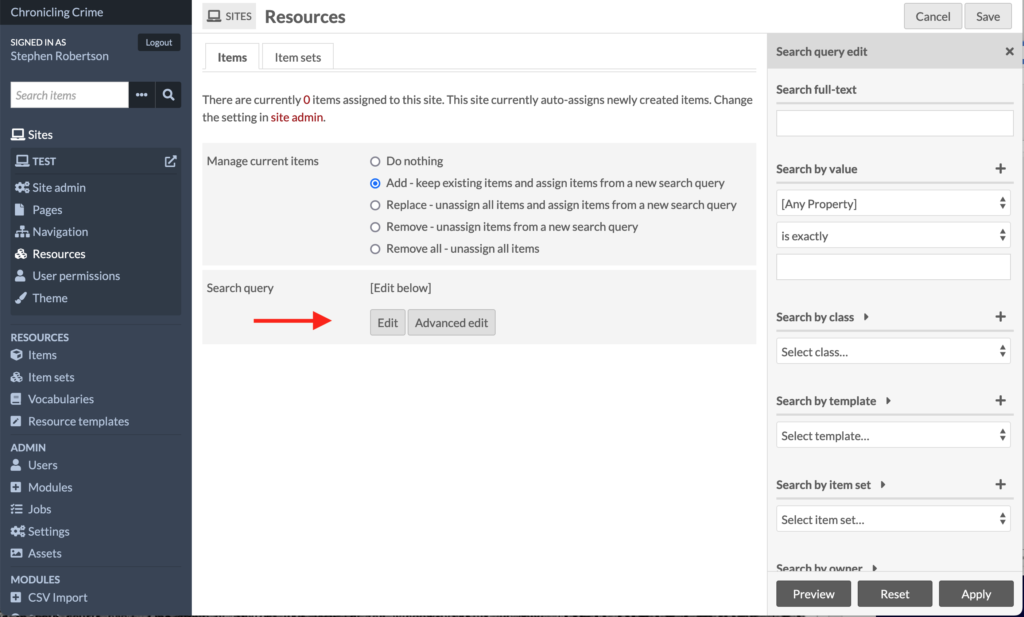
- Click on the Edit button – a menu will appear on the right side of the screen
- In the list of options that appears, scroll to the bottom option, ‘Search by owner,’ and select your name from the pulldown menu
- Click ‘Save’ on the top right of the screen – when the screen refreshes you will now see the number of items assigned to the site in red below the tabs has changed
As the class is sharing this site, you need to change the settings for your site so the dataset of other students are not added to your site as items
- Click on ‘Site admin’ in the left hand Site menu
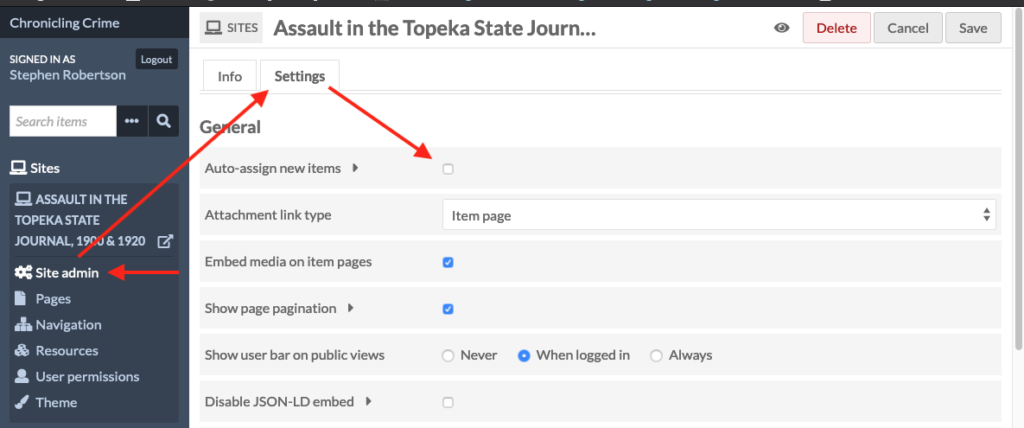
- Then click on the Settings tab
- Unclick the Auto-assign box
- Click ‘Save’ in the top right of the screen
NOTE – the eye icon next to Add indicates whether the site is public or not. You can leave it private while you are working on your site
