Click Item in the left column
For each of your items:
- Select the item
- click Edit
- Copy the information in the Location field (the address, not in/out of state)
- Click the Mapping tag at the top of the item information
- Click the Magnifying glass icon
- Paste in the address, hit return
- If you are given a set of options, choose the location of the crime
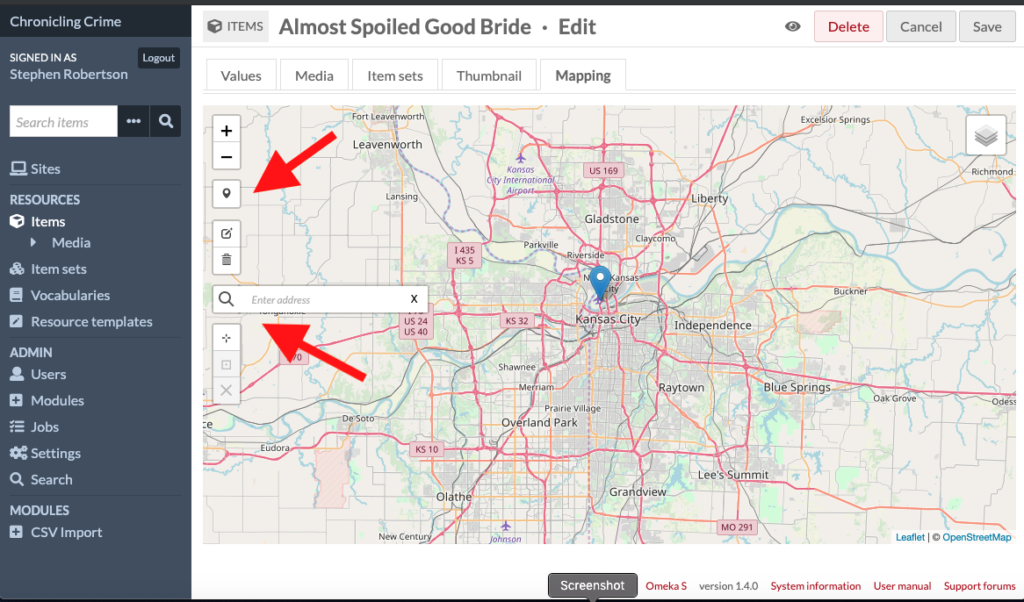
- Click on the marker, and in the Marker label box add the title of the story
- Click Save
To add a map to a page on your site
- In the ‘Add Block’ menu on the right, click “Map Attachment”
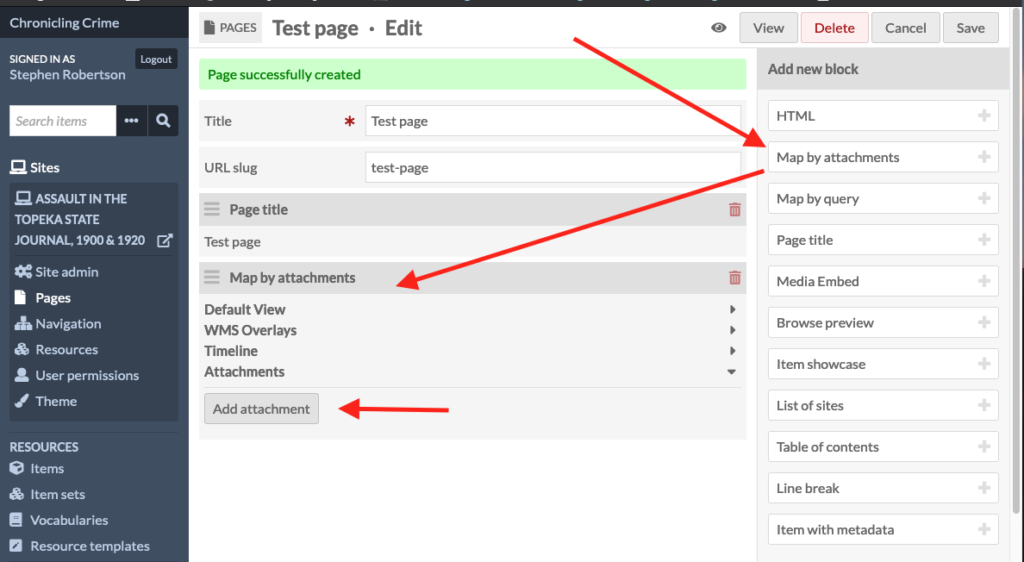
- The Map block will appear below the last block on your page – then click Add attachment and use the list that appears on the right to add each item you want to appear on the map
- Only those items that you have mapped will appear in the list
- Click on individual items to add them
- Click on Quick add to use check boxes to add a group of items
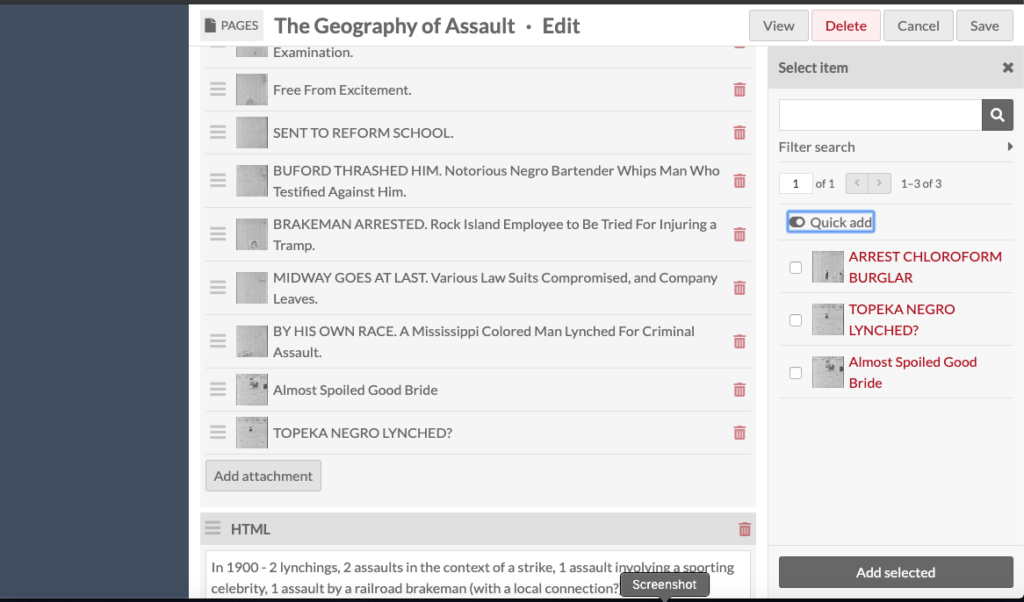
Click SAVE when you are finished
For additional instructions, consult the Omeka S documentation
