The content of your assignment needs to be presented in a series of pages, each of which contains a part of the assignment.
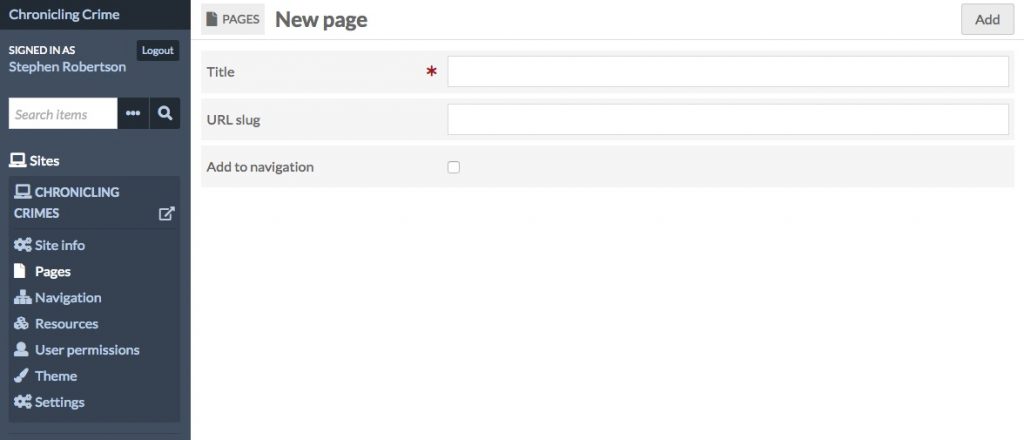
To create a page, click on Pages in the left menu and then Add new page, add a title (which you can edit later), check the “Add to navigation box,” and click the Add button in the top right of the screen
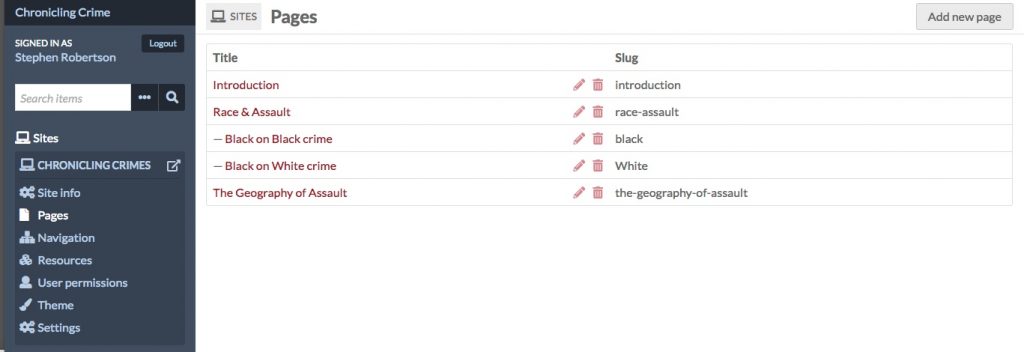
After you have created a page it appears in the list of pages on your site. To edit the page, click on the pencil icon
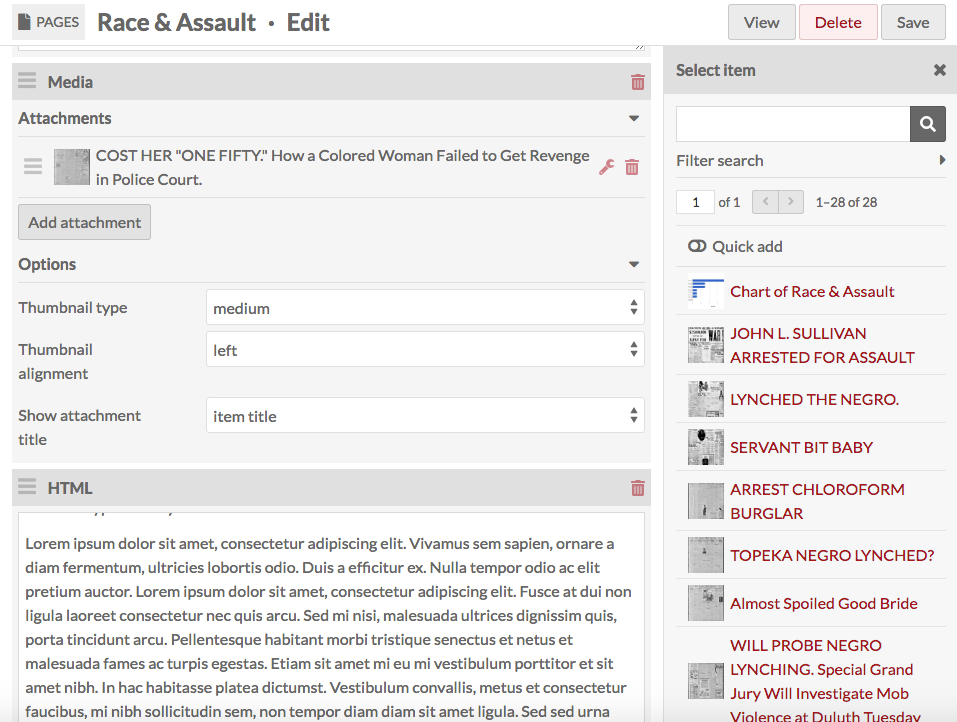
A page is made up of a series of blocks, each of which allows you to add different kinds of content. A page can have as many block as you want, but pages which are long can become off-putting to readers.
- Clicking a block type in the Add new block column on the right of the screen on the type of block adds that block at the bottom of your page.
- You can reorder the blocks by clicking on the 3 lines next to the block type and dragging the block to the place you want it to appear
You will only need some of the block types for your exhibit
- HTML – this block has two uses
- For text – when you click in the box it gives you a toolbar of formatting options for the text
- Media – to add a story from your dataset — If you want the item to appear beside a block of text, put the media block ABOVE the HTML block containing that text
- Click add attachment to open up a list of your items in the right
- Click on the item you want to add – and add a caption
- Click Apply changes to add the item to your page
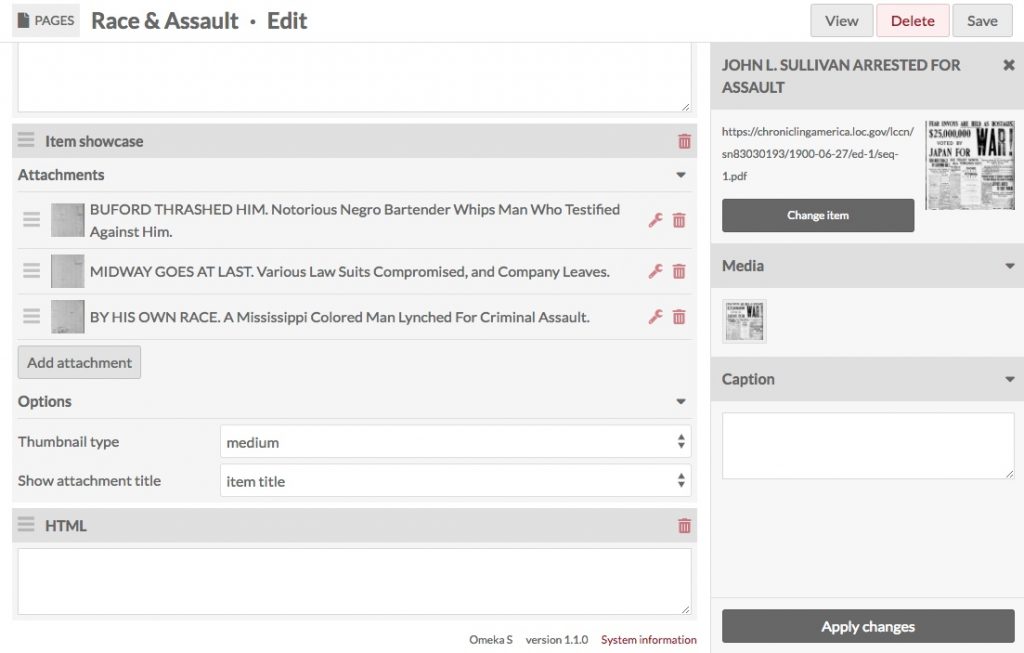
- Item Showcase – to add a set of stories, such as all the examples of a pattern
- Click Add attachment, then Apply changes to add each item
- You can reorder then items by clicking on the 3 lines next to the item and dragging it to where you want it to appear
- The items will appear horizontally across the page
Make sure you click SAVE in the top page to save your work; Omeka does not autosave
Once you have clicked save, click VIEW to see what your page looks like (this opens a new tab; you can return to the Admin tab to continue work on your page, and click EDIT PAGE)
